Rdiff-backup vs Duplicati on Windows 2
I like backups. I like them more since losing many, many GBs of data over a decade ago – before I got backup religion.
Many of the long term readers know that I’m always looking for a better backup method.
I’ve been using rdiff-backup for about 3 years on Linux systems and mostly like it, but it isn’t perfect. Yesterday, I decided to check out a new way to backup my Windows7 laptop, Duplicati. I’d seen a few GUI tools for Windows that use the back end Duplicity tool. I’d always been interested in Duplicity because it does things that many other free tools do not. Things like encryption and networked backups to lots of services (Amazon S3) or just over ssh/sftp.
Keep reading for more on the different experience with Duplicati vs rdiff-backup.
Skype from Regular Phones at Home 8
Last year I found a few articles on how to setup Skype to work with a PBX like Asterisk or FreeSWITCH. This last weekend, I finally got Skype working using my home phones. The solution was tested on Windows and deployed on a Linux PC. I’ve deployed it on Linux as a replacement to expensive home phone service. Using Windows introduces many undesired issues for me (stability, license costs, etc).
I wanted the ability to extend this solution beyond a simple 1 line phone in the future, possibly adding a PBX and other PBX capabilities around this Skype-at-home use.
Features
- Use normal home phones just like regular phones. Making and receiving calls like you’d expect. Visitors to your home don’t need any instructions to make phone calls (except 911).
- Setup speed dial entries to both Skype and normal telephones. It would probably be useful to create 911 speed dial entries to your local police or fire department switchboards
- Cheapest home phone solution that I’ve discovered that doesn’t demand tracking of your web traffic.
- Voicemail
2010 Article Summary
I was going to create a Top 10 List of 2010 here. Then started looking through the articles and some constant themes can out.
- Virtualization For Desktops and Servers
- Disk Encryption
- Backups Rock!
- Risks and Concerns for Cloud Computing
- Quicken Runs on Linux – ’nuf said.
- Security Isn’t Easy
- Passwords – Never the Same and Use a Password Manager
- Desktop Security Tips
- Browser Security Settings
- WiFi Router Security Checklist
- Privacy Is Gone Online
- Don’t Use Adobe Software
- Windows Software to Avoid
- Free Security Tips Ebook
- Dealing with Computer Viruses
- Been Hacked?
- How To Build A Home Server – Cheap
Previous Best Articles Here
Happy New Year!
Gawker Media Password DB Stolen 2
Success with Linux For Non-Techies
Last week, I visited some relatives. Their computer running MS-WindowsXP had at least 1 rootkit installed and a number of viruses and spywares. This machine was running Firefox with NoScript (disabled) and Thunderbird for email. The main user is not very technical, but uses Firefox, Thunderbird, Quicken, and Investor’s Toolkit most days. I knew that solving the issue on Windows was going to be a problem again and again.
Linux to the rescue.
Solved-Quicken 2011 Working on Linux 39
This article is extremely out of date and probably not very useful for steps to get quicken working on current Linux releases.
For many people, Quicken is the program that prevents them from switching to Linux 100%. This week, I finally took the time to install Quicken 2011 Premium under Linux Lubuntu 10.04 LTS and get it working very nicely.
Below are the steps and comments for how to accomplish this. I did reference the WINE-HQ Quicken App Instructions to make it work, but some of those steps were less than clear to me. WINE is Wine Is Not an Emulator.
I’d bet these steps will work for older Quicken versions too. I’ll test it with Quicken Home & Business 2008 in a few days, but expect it will work just fine for the things I do, which are fairly extensive.
I shouldn’t have been surprised that Quicken would work under WINE, heck Microsoft Office 2003 works too (except Outlook).
Recheck WiFi Channels Every Year
In the USA, there are 11 channels for 802.11b and 802.11g wireless networks to use. However, only 3 of those channels do not overlap, 1, 6, and 11. That means choosing any channel besides one of those three is to be avoided. In my neighborhood of single family homes with USA average sized lawns, I see 9 WiFi networks from my home office, one of them is mine. Here is a table created by a wireless router Wireless Site Survey function:
Java Enabled Browsers-Are You Crazy? 1
I was reviewing the web site statistics today and noticed that 63.7% of my visitors have java enabled. Java, not JavaScript.
ARE YOU CRAZY?
Having Java enabled in a browser by default seems crazy to me. There are not that many websites that need Java in a browser to run Applets, but if you run NoScript, then you can specify which websites can run Java Applets and all others cannot. If I had java enabled in a browser – which I do not – I’d definitely selectively enable it for specific web sites only.
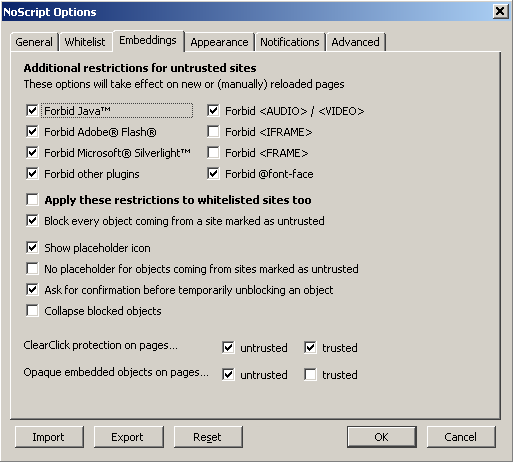
Above are my real NoScript settings in Firefox 3.6.12 running on Lubuntu Linux 10.04.
I do understand that if you are visiting this site from work, you may not have the option to disable Java selectively.
From a security perspective, disabling all the extra plugins should increase security. Having them enabled by default is just a bad idea. These are my opinions. Computer security is one of those things where everyone thinks they are secure … until they are hacked. Then it is too late.
If you don’t use Java, turn it off by disabling the plugin. If you do use Java, please use NoScript to be selective where you allow it to run.
Of course, if you have Java applications and need to run on your desktop, please remember to stay patched. There was an important security update for Java earlier this week and there have been a number of important patches for Java the last few months.
How to Deal With Computer Viruses
We all get computer viruses, eventually. There is nothing anyone can do, but whether it is a small inconvenience or a major computer-doesn’t-work-for-weeks issue is up to you.
It doesn’t matter which operating system you have. Viruses have been written for it. It is true that since 92% of all computers in the world run MS-Windows, that platform is the main target, but Apple’s OSX, Linux, Solaris, AIX, iPhones, iPads, Blackberries, Android, Windows7 Phones are all targets too. If it runs with a computer, then it can have a virus. Those electronic picture frames have carried viruses.
Below, I outline the steps to recover from a virus infection or worse.
Beware: Open Source Projects and Oracle 4
Update 7/2015 Oracle isn’t screwing just F/LOSS projects, if appears. Is Oracle really forcing enterprise customers to use their cloud?
Seems that MSFT might be doing the same for Office 365 to get higher client counts. At least 1 major company who never intends to use Office 365 got a better license deal just by signing up. They never intend to use the service and are migrating to Postgres and LibreOffice as quickly as possible.
Original Text:
Oracle is effectively killing some of the most important, fantastic, open source and FLOSS tools that we’ve come to depend upon. This is really sad for the FOSS world. It will not be long before these currently open tools disappear because Oracle can’t directly make any money from supporting them. Let me explain.
Oracle is the New Evil Empire
Oracle has never been very friendly to FOSS or FLOSS, but since buying Sun Microsystems, they have effectively killed some of the most important projects.
The Almost Dead List – Some Already DEAD
- OpenSolaris
- ZFS
- MySQL
- InnoDB
- Java
- OpenJDK
- NetBeans
- VirtualBox
- Oracle VM
- GlassFish
- OpenOffice
Here’s a list of FOSS from Oracle that will probably be only useful for historical purposes soon. Most of the leaders for these projects that Oracle got with the Sun purchase have left Oracle after trying to fit into the new corporate culture. Full disclosure: I’ve owned Oracle AND Sun Microsystems stock over the years. Since the Sun purchase, I sold ORCL and haven’t owned any shares on over a year.
If you are currently using any of those tools, you need to make strategic plans for alternates. Oracle *will be killing them off. Some will be saved by creating new FLOSS projected based on the last open license version.
Alternatives for Some
- ZFS – BTRFS
- MySQL – Postgres
- Java – Ruby or C++ (or any number of lesser known languages like D for F#)
- VirtualBox – KVM or VMware Player
- OpenOffice – LibreOffice
Or you can just plan to purchase the right to use the tools at Enterprise Software Costs. Not cheap.
I’m not actively using most of the software listed above except VirtualBox, OpenOffice and MySQL. For those, I have alternatives, but like almost everyone else, change isn’t easy until it is forced on us.
I’m not anti-corporations, but Oracle has not been a good steward and I have no reason to believe they will change. Just look at the handling of the OpenSolaris shutdown. I was a member of a local OpenSolaris UG. The leader was a well known and respected former Sun Systems Engineer, currently working for Oracle. I miss the UG. Oracle has proven they cannot be completely trusted. They are willing to change the rules.
Without the GPL, BSD and similar FOSS licenses, we’d be completely screwed. Now is a good time to donate to the EFF or FSF. A $20 donation will go a long way.